
dossaro docs
Account, organization and OAuth flow
How to sign up, choose a personal or organization workspace, join an organization and approve dossaro for ChatGPT or Claude.
Updated 2026-06-23
On this page
Connect dossaro to your research workflow
Add dossaro to Claude or ChatGPT and run source-backed register research from your own workspace.
 Add to Claude
 Add to ChatGPT
This guide explains what happens when a user connects dossaro to ChatGPT or Claude, especially when the user does not yet have a dossaro account or needs to use an organization workspace.
The short version:
- Every connector user needs a dossaro account.
- The connector approval is OAuth-based. ChatGPT or Claude sends the user to dossaro, and dossaro sends the user back after approval.
- A user can approve the connector against a personal workspace or an organization workspace.
- Organization billing and credits are shared with organization members.
- Owners and admins manage organization billing. Regular members use the shared organization workspace but cannot manage billing.
The screenshots below use sanitized demo data:
Organization: Atlas Research GmbH
Domain: atlas.example
Owner: owner@atlas.example
Member: member@atlas.example
Connector flow at a glance
When a user adds dossaro to ChatGPT or Claude, the connector host opens the dossaro OAuth screen. If the user is not signed in, dossaro first asks whether the user already has an account or needs to create one.
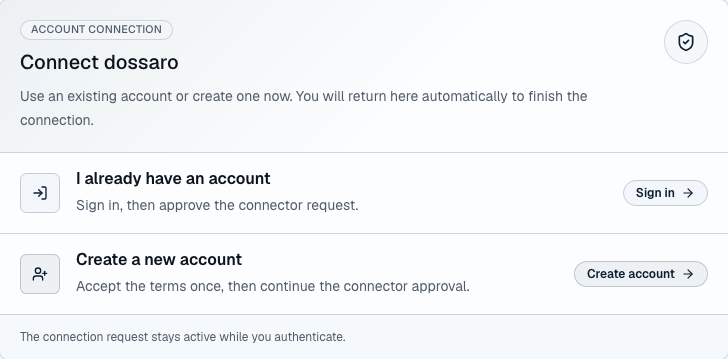
Choose the path that matches the user:
| User situation | What to choose | What happens next |
|---|---|---|
| Existing dossaro user | I already have an account | The user signs in and returns to the same connector approval request. |
| New user | Create a new account | The user accepts the legal terms, creates the account and returns to the same connector approval request. |
| Company admin or team lead | Create a new account, then create an organization | The user becomes owner of the organization workspace and can connect the MCP against shared organization billing. |
| Employee joining a company workspace | Sign in or create account with company email | If the email domain matches an existing organization, dossaro offers a join action before connector approval. |
First-time signup before connecting dossaro
Users can create a dossaro account before adding the connector.
- Open
https://dossaro.com/signup. - Accept the Terms of Service, Data Processing Agreement and Privacy Policy.
- Choose LinkedIn, password signup or email link.
- After signup, open the Account page to review the current workspace.
- Add dossaro to ChatGPT or Claude from the landing page, Account page or setup docs.
The legal acceptance checkbox is required for account creation.
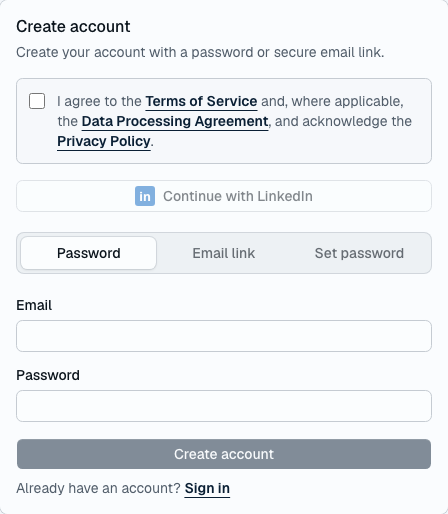
Use this path when the user wants to set up their account first, before touching ChatGPT or Claude.
First-time signup during OAuth
Most users will start from ChatGPT or Claude first.
- The user clicks
Add to ChatGPT,Add to Claudeor creates the custom connector manually. - ChatGPT or Claude opens the dossaro OAuth screen.
- The user chooses
Create a new account. - The user accepts the legal terms and creates the account.
- dossaro returns the user to the same connector approval request automatically.
- The user chooses a personal or organization workspace.
- The user approves the connector.
The important point: signup does not end the connector flow. The original OAuth approval request stays active while the user authenticates.
Personal workspace flow
A personal workspace is the simplest path. Use it when the user is evaluating dossaro alone or does not need shared company billing yet.
After sign-in, dossaro checks the user's billing context. If the user is not connected to an organization, dossaro shows the personal workspace state and offers two choices:
- connect with the personal workspace;
- create an organization first.
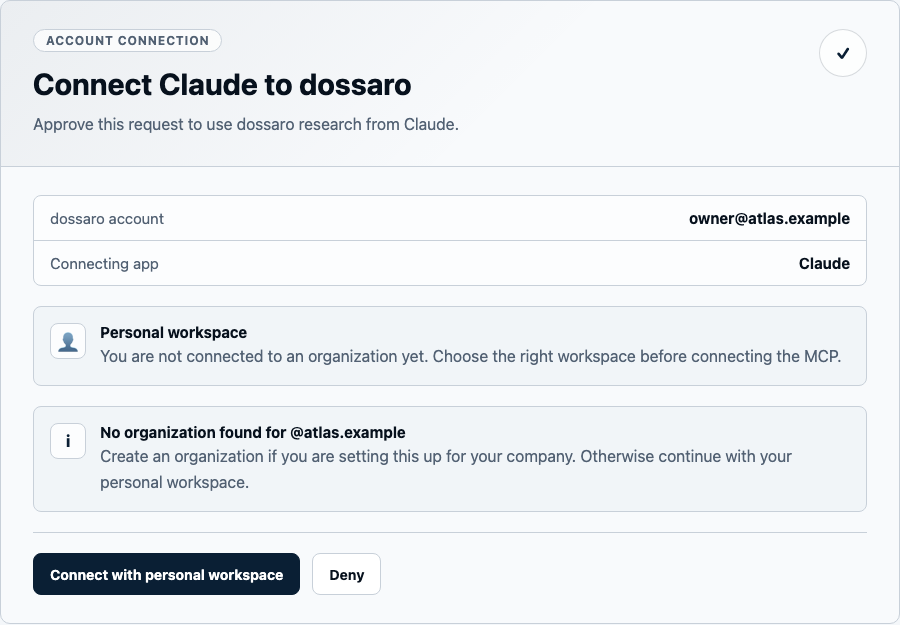
Choose Connect with personal workspace when:
- the user is testing dossaro alone;
- there is no company workspace yet;
- the user's usage should stay on their personal dossaro account.
Personal workspace usage is charged to that user's own credits and limits.
Organization admin or owner flow
Use an organization workspace when dossaro should be used by a company, team or shared business function.
An admin or team lead can create an organization during the OAuth flow:
- Sign up or sign in with the company email.
- On the OAuth approval screen, choose the organization path.
- Enter the organization name.
- Add the company domain if appropriate.
- Click
Create organization and connect. - dossaro creates the organization workspace, makes the user the owner and approves the connector against that organization.
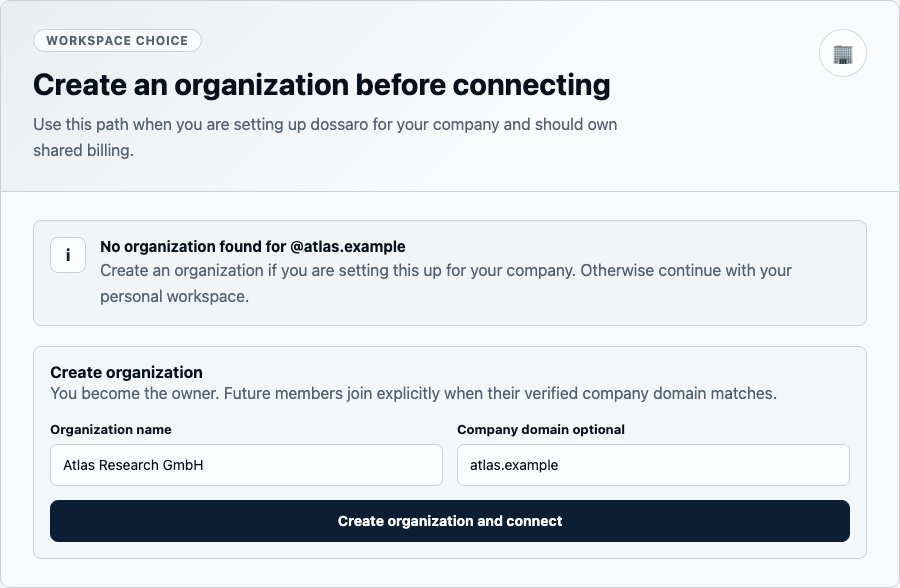
After creation:
- the creator is the organization owner;
- the organization has shared billing and shared credits;
- future members can join explicitly when their verified company domain matches;
- owners and admins can manage organization subscription and top-ups;
- regular members can use the organization workspace but cannot manage billing.
If the owner already had an active personal subscription, the Account page may offer to move that subscription to the organization. After the move, credits and billing apply to the organization.
Employee join flow
Employees should sign in or sign up with their company email address. dossaro uses the email domain to find matching organization workspaces.
When a match is found, the OAuth screen shows the organization and the role the user will receive.
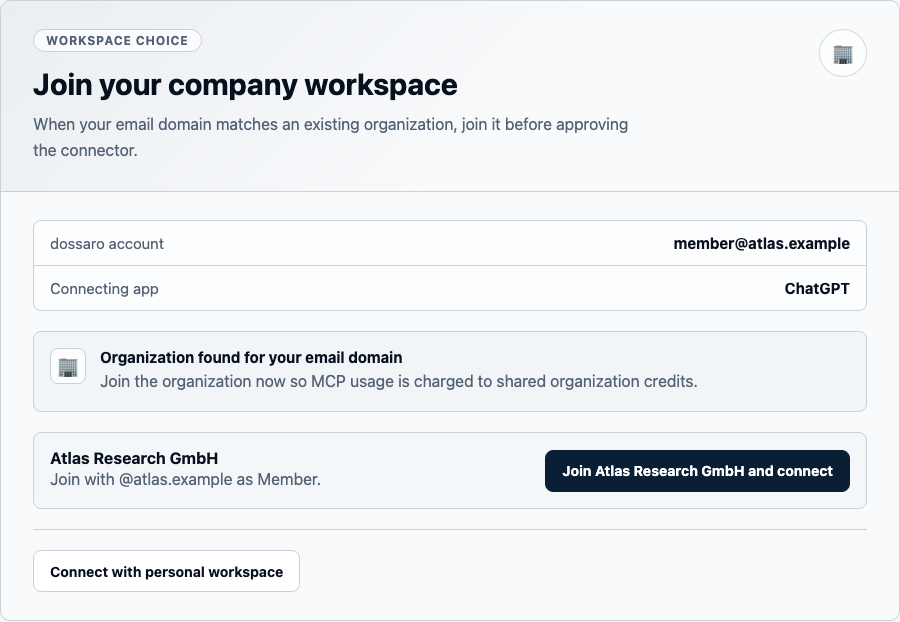
The employee should choose Join [organization] and connect when:
- the organization name is correct;
- the email domain is the user's real company domain;
- connector usage should be charged to the shared organization credits.
After joining:
- the connector approval continues automatically;
- MCP usage is charged to the organization workspace;
- the user can run dossaro from ChatGPT or Claude according to the organization's limits;
- billing changes remain limited to organization owners and admins.
If the organization shown is not correct, the user should not join it. They can connect with a personal workspace or contact the organization owner/admin.
Approving the connector
Once the user is signed in and the correct workspace is selected, dossaro shows the connector approval screen.
For an organization workspace, the screen makes clear that the connector will use organization billing.
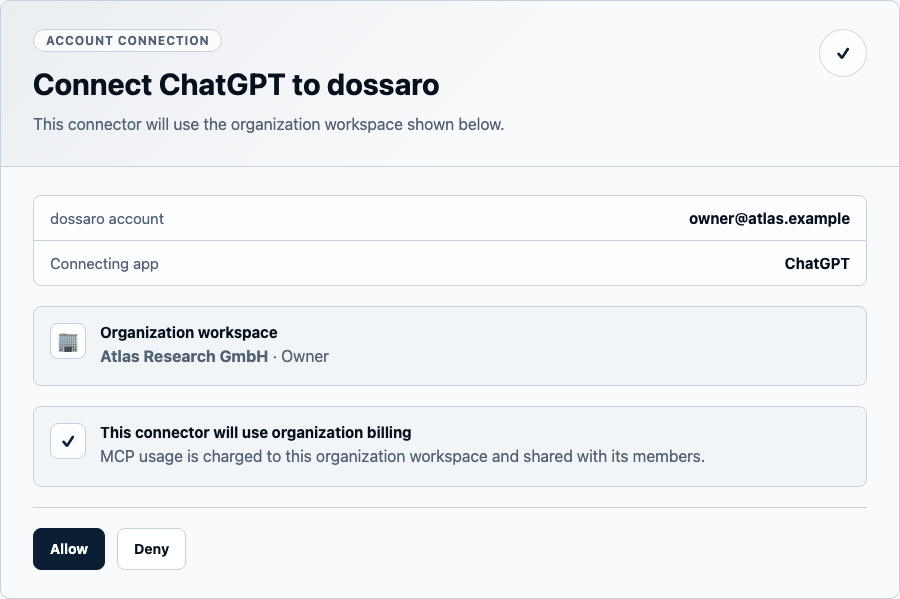
The user should click Allow only if:
- the shown dossaro account is correct;
- the connecting app is the expected host, such as ChatGPT or Claude;
- the shown workspace is the intended personal or organization workspace.
After approval, dossaro redirects back to ChatGPT or Claude. The connector host can then call dossaro MCP tools for that dossaro account and workspace.
Account page after setup
After setup, users can review the active context on the Account page.
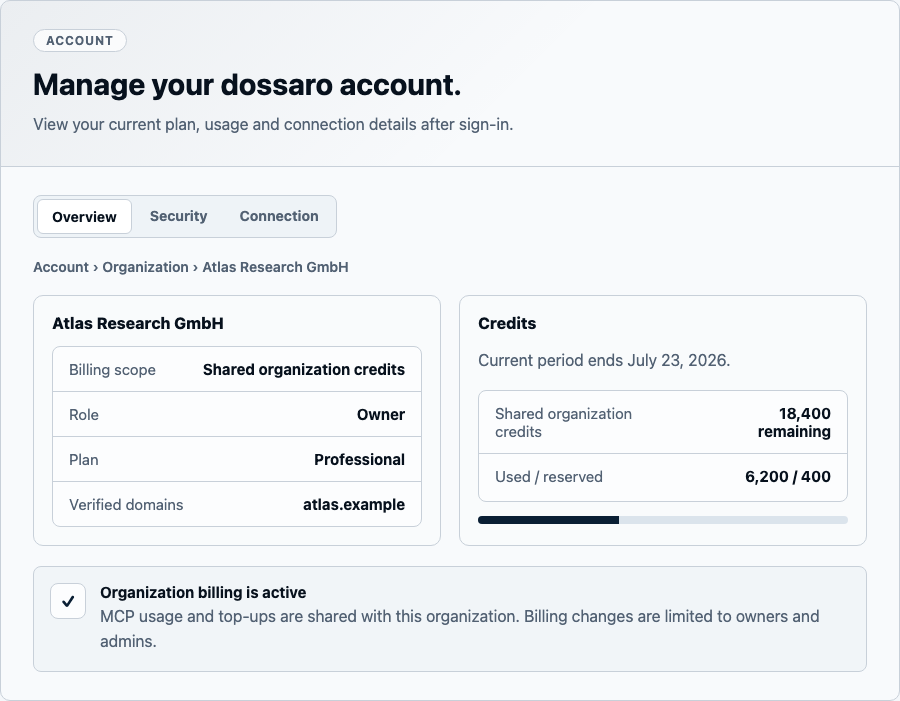
Important areas:
| Area | What it shows |
|---|---|
| Breadcrumb | Whether the user is in Personal workspace or an Organization. |
| Billing context | The current workspace name, role, plan, subscription and verified domains. |
| Credits | Remaining, used and reserved credits for the current billing period. |
| Billing actions | Subscription, top-up and organization billing actions. Owners/admins see more actions than members. |
| Connection tab | Connector installation details for ChatGPT and Claude. |
| Security tab | Password setup or password update. |
Admin, owner and member differences
| Role | Can use MCP connector | Can use shared organization credits | Can manage billing |
|---|---|---|---|
| Personal user | Yes | No | Only their own personal billing |
| Organization owner | Yes | Yes | Yes |
| Organization admin | Yes | Yes | Yes |
| Organization member | Yes | Yes | No |
Members who need plan changes, top-ups or billing changes should ask an owner or admin.
Troubleshooting
No organization match appears
This usually means the signed-in email domain does not match a verified organization domain.
- Confirm the user signed in with the company email, not a personal email.
- If the company workspace does not exist yet, an owner/admin should create it.
- If the workspace exists but does not appear, ask the owner/admin to check the configured domain.
- The user can still connect with a personal workspace if that is acceptable.
The wrong organization appears
Do not join the organization if the name or domain is not expected. Use a personal workspace or contact the organization owner/admin before approving the connector.
The user has a generic email address
Generic or free email domains usually cannot be matched automatically. The user can:
- continue with a personal workspace;
- create an organization manually if they should own one;
- sign in again with their company email.
The user already has a personal account
Existing users can sign in during the OAuth flow. If they need company billing later, they can create or join an organization from the Account page or during the connector approval flow.
A member cannot buy top-ups or change plans
That is expected. Billing changes are limited to organization owners and admins. The member can still use the shared organization credits if the connector is approved against the organization workspace.
OAuth does not return to ChatGPT or Claude
- Keep the connector setup tab and the dossaro authorization tab open until approval is complete.
- If the connector host looks stuck, cancel and restart the connector setup.
- If the user signed in with the wrong account, sign out of dossaro and restart the connector setup.
The connector uses the wrong workspace
Disconnect or deny the connector and restart the OAuth flow. During approval, check the workspace area before clicking Allow.